Quick Tip: Assigning Hotkeys & Making Custom Menus In 3d Studio Max
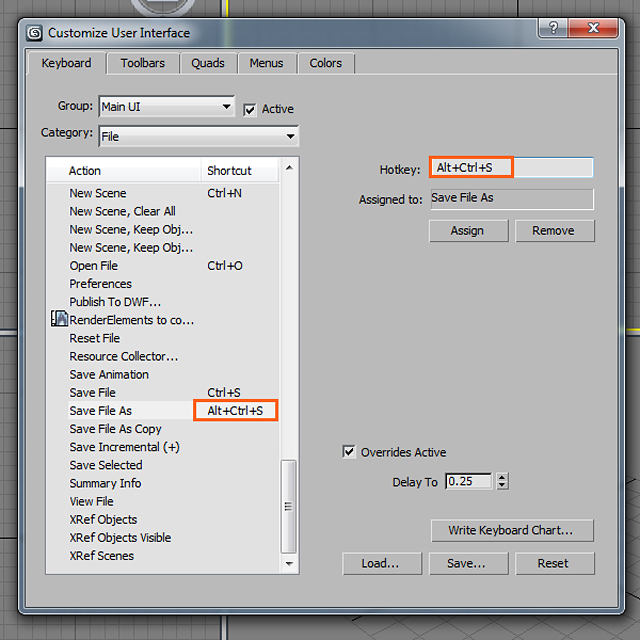
One of the most important steps in building a better, faster workflow is the addition of Hotkeys. These simple shortcut commands might only shave seconds off at a time, but in the long run those seconds can add up to hours. In this quick tip from Chandan Kumar, you’ll learn how to save time and work more efficiently by creating your own custom tool menus right inside of 3ds Max’s UI, and how to setup keyboard shortcuts for the tools you use most.
Note: click the ‘Monitor’ icon to view tutorial in full-screen HD.
This awesome piece of software consists of 3D modeling design, realistic animation, and renders of 3D models. There is a free 3ds max trial version to try out (See the 3ds Max download below). You can purchase the software at the link below. Also, students get to
Introduction to and history of Autodesk 3ds Max
Developed and produced by Autodesk Media and Entertainment, Autodesk 3ds Max is software for rendering 3D animation, models and imagery. It was originally called 3D Studio and was created by the Yost Group of Atari for work on the DOS platform, and development started in 1988. It later was adopted for Windows NT with 3D Studio DOS release 4 and was subsequently renamed 3D Studio MAX. 3D studio MAX, also developed by the Yost group was produced by Kinetix, which was then the media and entertainment division of Autodesk. It was the release 8 of the original 3D Studio, which was renamed Autodesk 3ds Max which was made available to the public in 2009. 3ds Max offers much functionality targeted towards ease of use and faster image and animation rendition.
Major Applications of Autodesk 3ds Max
The software is used in developing CGI as well as applications ranging from academia to game development. Each use of the software requires the use of a different set of tools available in the software and as plug-ins. 3ds Max is available free of cost for students. However profession packs are available for sale.
Major Features of Autodesk 3ds Max
Autodesk 3ds Max is primarily, although not completely, based on polygon modeling. Polygon modeling is used more extensively in game design than in other animation application as it offers a highly specific control over individual polygons that make up the model. This feature of polygon modeling also allow for greater optimization of the model.
Usually, the design process begins at the selection of a primitive model bundled with 3ds, which is then further refined as per need. The current versions have a simplified mesh editing interface and using the ‘edit poly’ modifier which moves the tools available in the primitive model, higher in the modifier stack, allowing them to be used on top of other modifications.
In the 3ds Max software various unique primitive shapes such as teapots, cones, pyramids and cubes are available which can be used as a base for model development.
Although polygons are the method of choice for model building, surfaces are easier to define using other methods. 3ds Max’s subdivision surface support allows for smoothened surfaces and with the use of tools like Soft Selection, which allows manipulation of vertex clouds into the desired shape without distortions from unwanted shapes and displaying smooth surfaces. The sculpting brush feature allows smooth surfaces to be drawn by hand, if polygons give a distorted image, although functionality is limited.
The NURBs feature of Autodesk 3ds allows smooth surface rendition by use of mathematical formulae and is of greatest use to in accurate simulation of mechanical parts. This is of greatest use in applications such as automobile design and instrument design.
3ds Max allows the use of custom lighting and shadows and highlights can also be ‘burned’ into the image rendered. These settings are mostly used for game imagery, since pre-fit values of shadows and highlights allows the game engine to process less data thereby improving game speed and performance as the model is already painted with the required modifications.
This also means that for constant lighting conditions during play, especially if motion is involved, the images do not falter and give a constant, regular image, free of improper shadows and bad graphics.
For life like character models, 3ds Max includes simulation for hair, skin, cloth and fur, all requirements for simulation of living beings. These inbuilt add-ons reduce the time required for model development and improve the detail for each frame.
It also includes rigid body dynamics which means that simulation of hard bodies such as wood or bricks, is easy to perform. This software is also equipped with features like shatter effect to recreate the dynamics of shattering rigid objects. However, soft body dynamics, which allows for the motion simulation of deformable objects, is not supported by 3ds Max, which makes simulation of such objects difficult.
A very useful feature of this software is the support for Inverse Kinematics and Forward Kinematics. Inverse Kinematics or skeleton modeling allows the user to create a model and fit it with a skeleton, which can then be animated as per the requirements of the animator. This skeleton can then be placed inside the model, making the animating the model easier.
Tools available in Autodesk 3ds Max
* MAXScript: It is a scripting language which is built into the software and can automate repetitive tasks, give varying combinations of present features and developing tools and user interfaces. MAXScript can also be used to build plug-ins for 3ds Max.
* Scene Explorer: Scene Explorer provides an orderly, hierarchical view of scene data. It allows categorical editing of data, to achieve simplicity in editing complex sets and can also manage code in .NET.
* Character Studio: Initially a plug-in character studio is a tool for help in animating virtual characters, the Character Studio allows using stock skeleton animation to quickly and easily modify characters for a project which work on the ‘biped’ skeletal system.
* General keyframing: There are two keying modes; auto key and set key which provide support for separate workflows. The keyframing controls given help in easing the animation by providing simple, but important features like cut, copy and paste.
* Constrained animation: It allows animation of objects placed inside the constraints of their shape. This tool allows the animation of objects along curves with controls provided for smoothness, velocity, alignment, banking etc. and along surfaces.
* Skinning: Using with the Physique or Skin, a fine control of movement can be achieved and can be used in the most tricky of places.
* Integration with Autodesk Vault plug-in: The Autodesk Vault is a plug-in which is shipped along with 3ds Max and is used to integrate user data and assets on to one location, thus tracking progress on projects. Also, managing work in progress is an easier task. The plug-in enables users to safely and easily design, find, reuse and share 3ds Max models for a team production effort.
Conclusion
All in all, Autodesk 3ds Max is a useful software for learning and practicing animation and developing the skills required for 3D modeling and animation purposes. Along with having a very user friendly interface, it also can be used for managing professional projects in animation. One of the best features is added plug-in functionality which increases its features by a wide margin.
We select the very best iPad Pro apps that utilize the Apple Pencil’s talents to the max.
We called the Apple Pencil ‘reason enough to buy an iPad Pro’, but of course in order for either of them to be any use at all, you need developers to have created useful apps that can truly take advantage of their power and flexibility.
Happily, as this list shows, there is already a strong roster of apps from companies big and small which really let the Pencil shine – all you have to supply is talent! (And a Pencil. And an iPad Pro.)
01. Adobe Comp CC
Requirements: iOS 8.1 or later
Developer: Adobe Systems, Inc
This app is a revelation, and makes the process of wireframing or mocking-up designs a cinch. The idea is that rather than pulling out your notebook and drawing dumb rectangles for pictures or a few horizontal lines to indicate where text would go in a layout, with a few simple and intuitive sketched shapes you can actually start building those layouts for real – and then pass them to InDesign, Illustrator or Photoshop. It’s worth familiarising yourself with all the different gestures for aligning, grouping and so on so that you can work quickly and efficiently.
You could do all this with just your finger, but using the Pencil feels delightfully like drawing in a notebook with a magical pencil, where birds you draw come to life and fly off the page. Draw a rectangle, slash it with a diagonal cross and it becomes an image box which you can populate with assets from, say, yourCreative Cloud Library. Draw a box and scrub a few horizontal lines in it, and boom, it’s a text box, which you can style manually – there’s also a handy, quick slider control for point size – or which you apply styles to from your CC Libraries. Rough squares snap to perfect geometric shapes.
It’s fast, fluid and easy, and while sure, pro designers are likely to work from these wireframes like they would with one drawn in ink in a Moleskine – that is, merely referring to it but building from scratch, rather than importing it from Comp – but it can still be a boon to your productivity to be able to quickly mock up your designs using real live assets and styles.
02. Procreate
Requirements: iOS 9.1 or later
Developer: Savage Interactive Pty Ltd
This is the king of natural media apps on the iPad, and it is completely transformed with the addition of the Pencil. Sure, you can use your finger with it, a simple stylus, or even one of the increasingly complicated and expensive third-party styluses from the likes of Adonit, but none of these give you the fluidity and analogue-like experience that the Pencil does.
In part this is down to the Pencil’s fine tip, in part the low latency and double-speed sampling rate, and in part because the palm rejection is nearly flawless, but all of that technical stuff just fades away into the background when you’re faced with the joy of sketching with a 6B pencil, turning it flat to block in big areas of shade, or mucking about with paints.
Yes, unquestionably Painter on a PC is capable of some more advanced natural media types – Procreate’s watercolours pale in comparison in particular – but overall this is a wonderful app which really comes to life when you use it with a Pencil.
For starters, it can push layered PSDs directly to Photoshop on your Mac or PC, and you can add either a flat grid or even a configurable 3D plane grid to the background, plus preset geometric shapes, to help keep you on the straight and narrow – and when you want to go on the wide and sinuous, there are French curves which you can trace against.
But that would be for naught if the natural media tools themselves were rubbish, but in fact they’re generally very nice. Pay attention specifically to the watercolour tool, which has colours bleed into one another in a most pleasing manner. What’s even nicer is that you can tap an icon – which looks like fan blades – to ‘dry’ the paint so that new colours added on top don’t bleed, giving you some terrific flexibility. The tools are Pencil-aware, so react wonderfully to pressure and tilt differences.
04. Pixelmator
Requirements: iOS 9.0 or later
Developer: UAB Pixelmator Team
We could have recommended Adobe Photoshop Mix here in place of this stalwart iOS bitmap editor – and certainly, its (bafflingly ropey) cut-out tools, layers, and paintable filters are generally quite nice – but Pixelmator just feels like the more mature and useful app.
As well as offering some (frankly a little underwhelming) natural media drawing tools which work with the Pencil, it gives you the ability to tweak the colours either by applying Instagram-style filters, or with sliders for brightness, contrast, saturation, RGB and white balance – or indeed by tweaking the curves.
But the pairing of Pixelmator and the Pencil really shine if you want to do some touch-up or object isolation. The touch-up controls – repair, dodge, burn, sharpen, saturate and more – are easy to apply with the Pencil especially given its precision, and when painting out backgrounds this precision, plus the various different eraser types available, are hugely welcome.
If we’ve one criticism it’s that we’d like the option of pressure-sensitivity affecting the size of an eraser rather than its opacity, but nevertheless this is the closest thing you’re going to find to Photoshop on the iPad – and the Pencil just makes it better.
05. Paper
Requirements: iOS 8.0 or later
Developer: FiftyThree, Inc
We’d love to be able to recommend Noteshelf here, which is overall a richer notebook app (albeit one that’s not quite as pretty or simple) but although it has recently added support for the Pencil, it’s very basic – there’s no tilt- or pressure-sensitivity.
Happily, though, Paper is easy to love. At first glance it might look like a reasonably simple drawing and diagramming tool – and on one level, for sure, that’s what it is – but there are some smarts here. They are frustratingly difficult to discover, but again it’s worth poking around the support files online to understand how the apparently simple tools can be used to create graphs, org charts and Venn diagrams, can easily duplicate shapes, link shapes with lines (with optional arrows at one or both ends) and much more.
Paper doesn’t demand the kind of precision you get from the Pencil, but it’s certainly welcome, and the slightly, delightfully cartoonish media work great with its sensors.
06. Evernote
Requirements: iOS 8.1 or later
Developer: Evernote
Ah, Evernote. Now, this definitely isn’t for everyone. For some, this über-notebook has become an indispensable place for gathering websites, sketches, notes, to-do lists and more – the detritus of modern life as well as inspiration and creative work – but for others its just a bit baffling and never quite clicks.
It’s definitely rich and capable, though, and the ability to record audio – during a briefing meeting, say, while you sketch ideas for a client – using its simple but effective drawing tools is great (though this isn’t the only app to offer that, of course). It’s pleasing how using the eraser tool creates nicely rounded ends to the ink strokes rather than just slicing them into sharp points.
Using the Pencil rather than a dumb stylus or your finger gives you a more expressive line since it’s pressure sensitive, but more importantly the palm rejection means that you can lean your hand on the screen like you would with paper, and Evernote doesn’t get confused and make marks where your hand is resting.
07. LiquidText PDF and Document Reader
Requirements: iOS 9.0 or later
Developer: LiquidText, Inc
Even without a Pencil this is a handy tool for reading and annotating PDFs, Word and PowerPoint documents, and web pages; it’s designed to support ‘active reading’, so that as you’re reading you can be highlighting and snipping out sections to refer to later, collapsing sections of a document down so that you can refer to disparate bits of it at once, and more.
Add in the Pencil, though, and it becomes even faster to use, and it’s a great example of how the Pencil’s pressure- and tilt-sensitivity can be used not just to mimic real-world drawing tools. Dragging the Pencil over text instantly selects it (rather than having to tap-and-wait with your finger), pressing harder selects any part of the document as an image, and dragging across text with the Pencil held at a flattened angle selects and highlights it. Smart.
Pencil support is also coming to the (actually pretty good) Microsoft Office apps, though as we write the update hasn’t hit yet.
08. uMake
Requirements: iOS 8.4 or later
Developer: UMake, Inc.
We’ll come clean: despite its assurances that it “empowers anyone to create 3D designs easily and intuitively” we don’t have the chops to produce anything remotely impressive in this 3D drawing app, but we can nevertheless see that it makes great use of the Pencil. The idea is that you can sketch in 2D – optionally making use of smart symmetry controls – and then extrude your designs or even draw entirely in 3D space, connecting points on different planes.
Even if you’re a bit clumsy and jittery, your lines are smoothed into flowing curves, and with practice we can see that it would be possible to create some elegant, organic forms at speed – and the precision of the Pencil’s tip will make this whole process simpler than with any other stylus.
It might get frustrating for highly technical engineering work, but you can always use it as a tool for getting an initial concept down before exporting to IGES or OBJ files so you can work it up in other apps.
Words: Christopher Phin
Chris Phin trained as a graphic designer before falling into tech journalism; he’s been trying to climb out ever since.
This time of year can often be a quiet one for those of us working in 3D art and visual effects, with developers gearing up for the events season and new releases being a bit thin on the ground.
However there are a few notable updates and newcomers, so have a read below to see what could help you improve your work or help you be more efficient.
01. Modo 10 series
Modo has been around for a while but continues to develop and grow
Recently announced is the latest version of the now long running Modo, the full solution for 3D artists that includes tools for modelling and texturing animation and rendering. Previous updates had followed the x01 naming convention, lending a feeling of continuity to the brand but The Foundry have broken from that with what would have been 1001. Instead they have refocussed a little and changed the way they are targeting their products.
10.0 v1 is the first of the new system and is aimed squarely at the interactive market, so if you are on the lookout for a solid 3D app for your VR work or game content then this is the one you want. It hasn’t quite been released at the time of writing but it’s just around the corner and will be followed later by 10.1 and 10.2 which will each have their own focus.
Rendering power is steadily moving to the GPU and Iray VR looks set to a strong contender
Most artists will usually have thoughts of graphics cards when you mention the name NVIDIA but they are also software developers and one of their main applications of recent years is Iray, now with additional versions for VR. Iray VR has many uses but the obvious benefits are for engineers and architects, where they will be able visualize not just form and function but also lighting interaction.
If you are into architectural visualization and want a step up then look at Iray VR, as it will let you light your spaces on the fly without the process of having to wait for test renders. Imagine taking the power of your GPU to run interactive demos to clients, showing them how their desgins will look in any situation. VR looks to be having a resurgence and Iray wants in on the party.
These two heavy hitting max plugins are well respected and rightly so
Possibly the best known plugins for 3ds Max is this pairing from iToo. Well regarded even amongst non-Max users, the software’s abilities in rapidly populating a scene in an organic yet controllable way has always been a huge benefit but they’ve announced their newest version which promises to add even more features.
There are a few new features for both apps but the main ones are expression support, so all you maths tweakers can use expressions to control your clones and their placements. Second up and one that will please many is support for V-Ray 3.3 including motion blur.
Check the website for a full list of new options as there are many new render options and a bunch of GUI options which make for more efficient working.
The popVideo keying tools allow easy background removal, with a single colour picker
If you work in VFX it’s pretty likely you will have to work with green or blue screen footage. That’s okay and working with different keying solutions is getting easier but there’s still a lot of room for improvement. Reallusion has announced its latest version of popVideo, which includes some simple to use keying options that have sophisticated uses.
Using popVideo you aren’t limited to the tradition blue or green screen studios but can effectively remove any colour background. The possibilities this opens up are enormous, from basic paper rolls that can bought from any photo supplies shop to working with sky removals or annoying artefacts. The tools is operated with a colour picker meaning traditional chroma values aren’t a limitation.
The pixel lab packs are winners for quality and price
If you are a Cinema 4D artist and need plugins, materials and models then look no further. Joren Kandel has a huge range which is growing steadily, month by month. The news here is that he is currently running an NAB sale where you can save over $1000 on the complete set of products. Sales like this don’t come around that often and, although this isn’t about a specific product, it’s well worth sharing.
Many of the items are After Effects compatible too, so check it out. Even out of sale these packs are heavily discounted and well worth investigating.



 Cool 3D flying wing model in 3ds Max


